 Kilnframe Desktop
Motion and keyframes
Keyframes make a clip change over time: grow, slide, fade, turn. Start from a ready move, or set each keyframe yourself.
Ready moves
Select a clip and open Clip › Motion (keyframes): Slow Push In, Slow Pull Out, Pan Left, Pan Right. Remove Motion takes it away.
Motion is off while a layout such as picture in picture is chosen: choose Free under the layout to add motion.
Your own keyframes
- Set the firstMove the playhead, set Size %, Across % and Up and down %, and press Add a Keyframe at the Playhead.
- Set the nextMove the playhead on, change the values, and add another. Between keyframes, the clip moves from one to the next.
- Step through themPrevious keyframe and Next keyframe; Remove deletes one.
Keyframe lanes
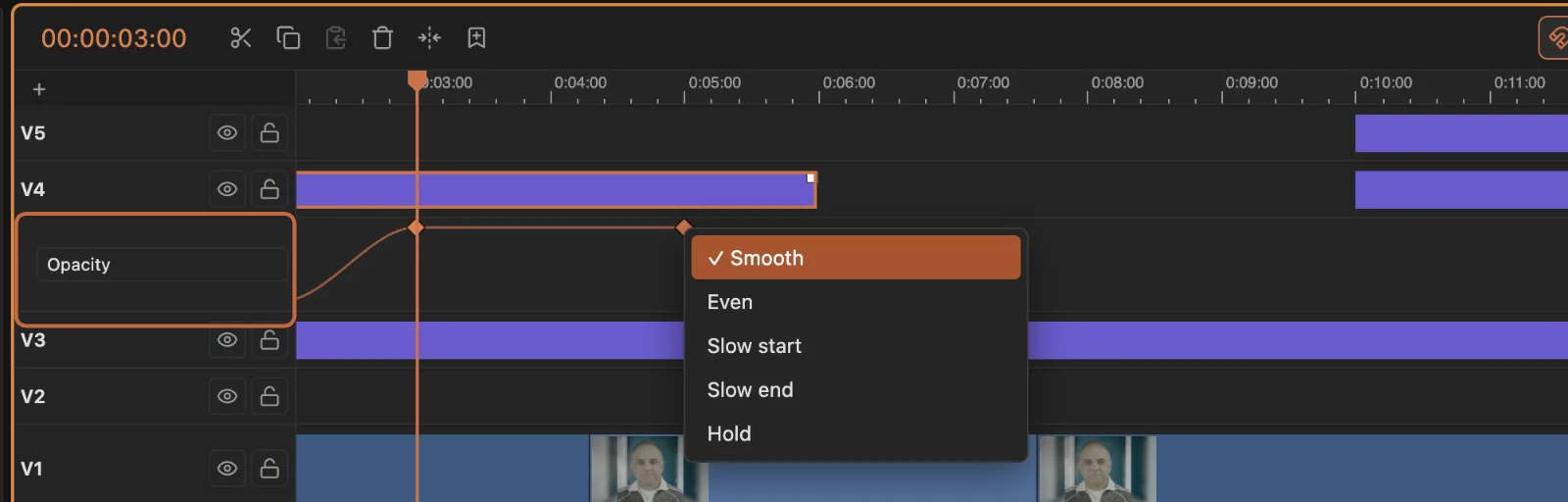
Press ⇧ K to show the lanes under the selected clip: Size and place, Opacity, Rotation and Crop. Click a lane with the Pen (P) to add a keyframe; drag one to move it.
Right-click a keyframe to choose how the move gets there: Smooth, Even, Slow start, Slow end, Hold or Custom curve.